Unify
Codex, Claude Code and any ACP agent in the same interface, with the same workflow.
Turn Codex, Claude Code and any ACP-compatible agent into an organized team. You delegate the work, approve every important step, review the changes and run your project without leaving a single window.
Free · No new account · No middleman servers · Everything stays on your computer
Get started in minutes
The installer on Windows, or a few commands on Debian, Ubuntu or Arch Linux, and it is ready to use.
See how to installUse the accounts you already have, or try it at no cost with the demo agent.
Create a space, link your project and delegate. You approve every important step.
Alt + A new space
The problem
This is what an ordinary day looks like when every agent lives in its own terminal.
You open one terminal for Claude Code and another for Codex.
You no longer remember which agent changed which file.
The agent asks for permission and you approve it without reading because you are in a hurry.
The quota runs out in the middle of a task.
You close the window and the conversation is gone, along with the reasons behind every decision.
Scattered agents. Each one in its own terminal, with its own format and no shared memory.
Conversations that vanish. Close the terminal and the reason behind every change is lost.
Blind trust. Watch every line, or grant full access and cross your fingers.
Ten windows for one task. Chat, editor, Git and terminal all in different places.
One task at a time. While the agent works, you wait.
Surprise quotas. You don't know how much usage you have left until it runs out.
Now imagine all of this fitting in a single window.
↓The solution
Your agents, your permissions, your code and your history, together in a single window.
Codex, Claude Code and any ACP agent in the same interface, with the same workflow.
The agent works on its own, but every command, write or sensitive access waits for your approval.
Conversation, files, code viewer, Git and terminal in a single window.
Every instruction, answer and change is saved, backed up and ready to recover.
Before: One terminal per agent
Now: All your agents in one place; switch agents in the middle of a task
Before: Conversations lost when you close
Now: A permanent history per project and task, exportable to Markdown or JSON
Before: Approving everything unread, or granting full access
Now: Clear permission cards: allow once, always allow or reject
Before: Jumping between chat, editor, Git and terminal
Now: Everything built in: review the diff, commit and push without leaving
Before: Waiting for the agent to finish
Now: Several tasks in parallel, and a notification when they need you
Before: Running out of quota mid-task
Now: A meter with the usage left and a countdown to the reset
Before: Losing work to an unexpected crash
Now: Automatic recovery, retries and verified backups
Features
01 / 04
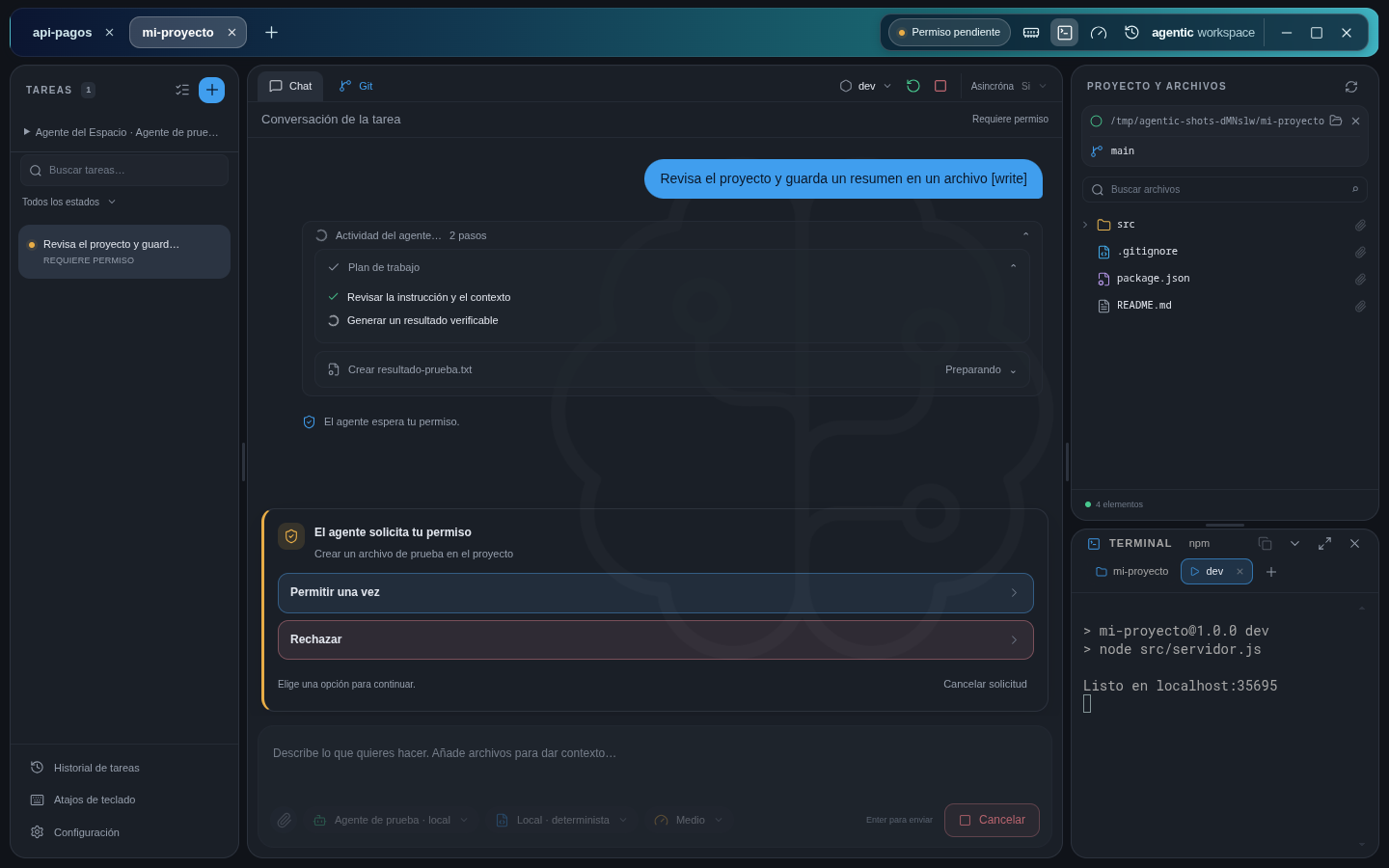
AI does the work. The important decisions are still yours.
The problem that goes away: choosing between watching every line or granting full access.
02 / 04
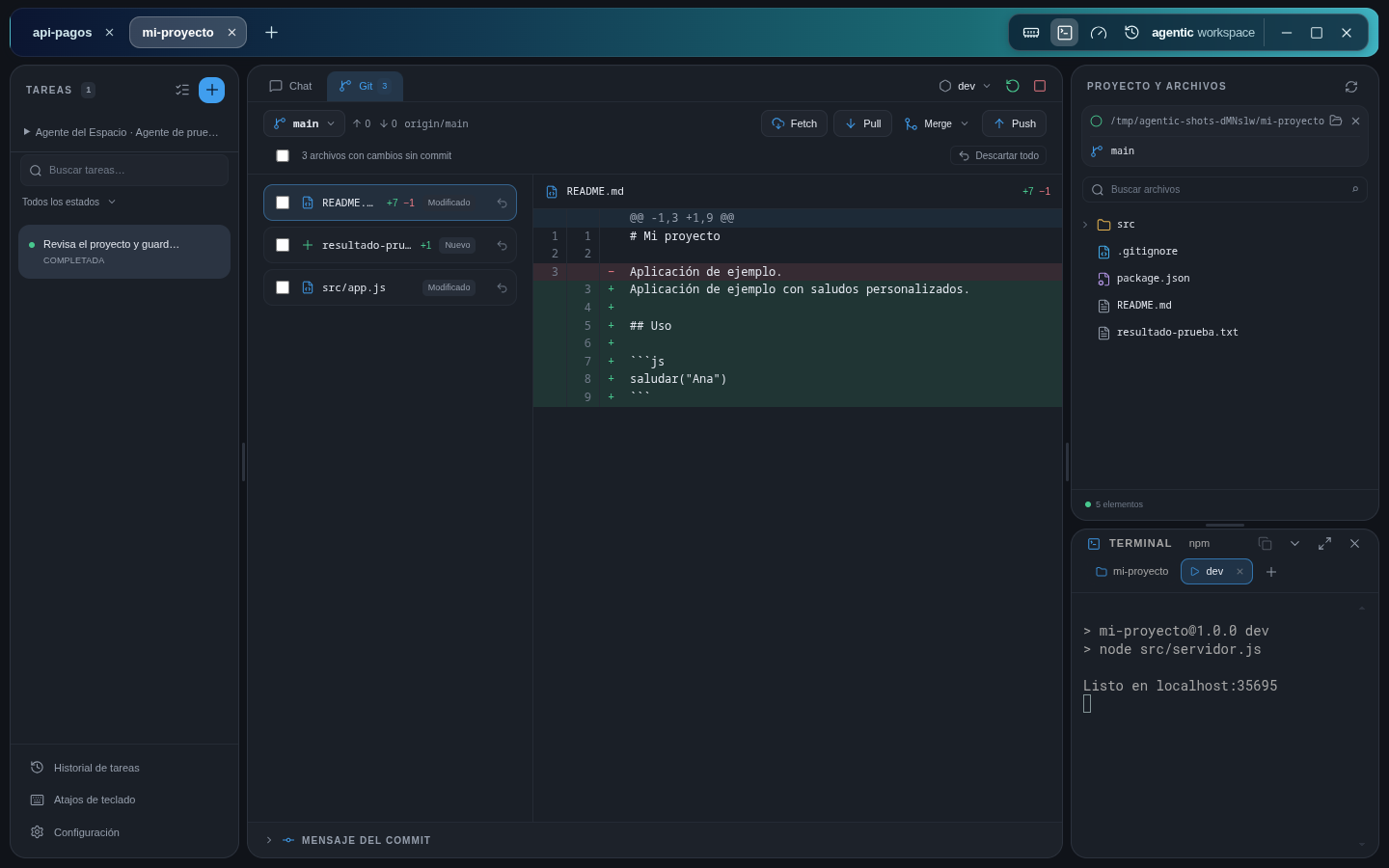
Review, accept or revert what the AI did in seconds.
.gitignore assistant.The problem that goes away: jumping to another tool to find out what changed.
03 / 04
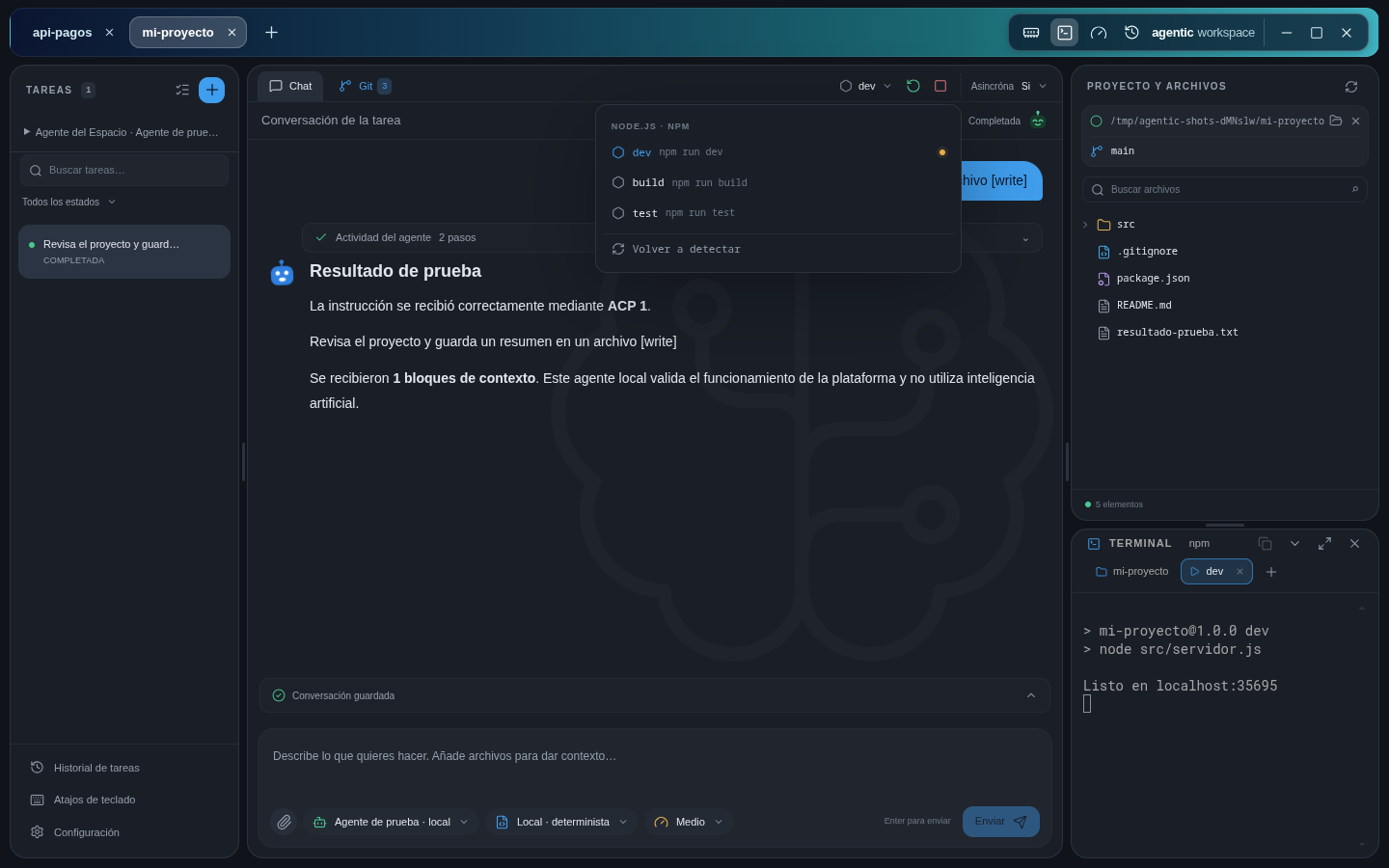
Try it as soon as the agent finishes, just like in your IDE.
package.json scripts and the Python entry points, with their virtual environment.The problem that goes away: opening another terminal to check whether what the agent did actually works.
04 / 04
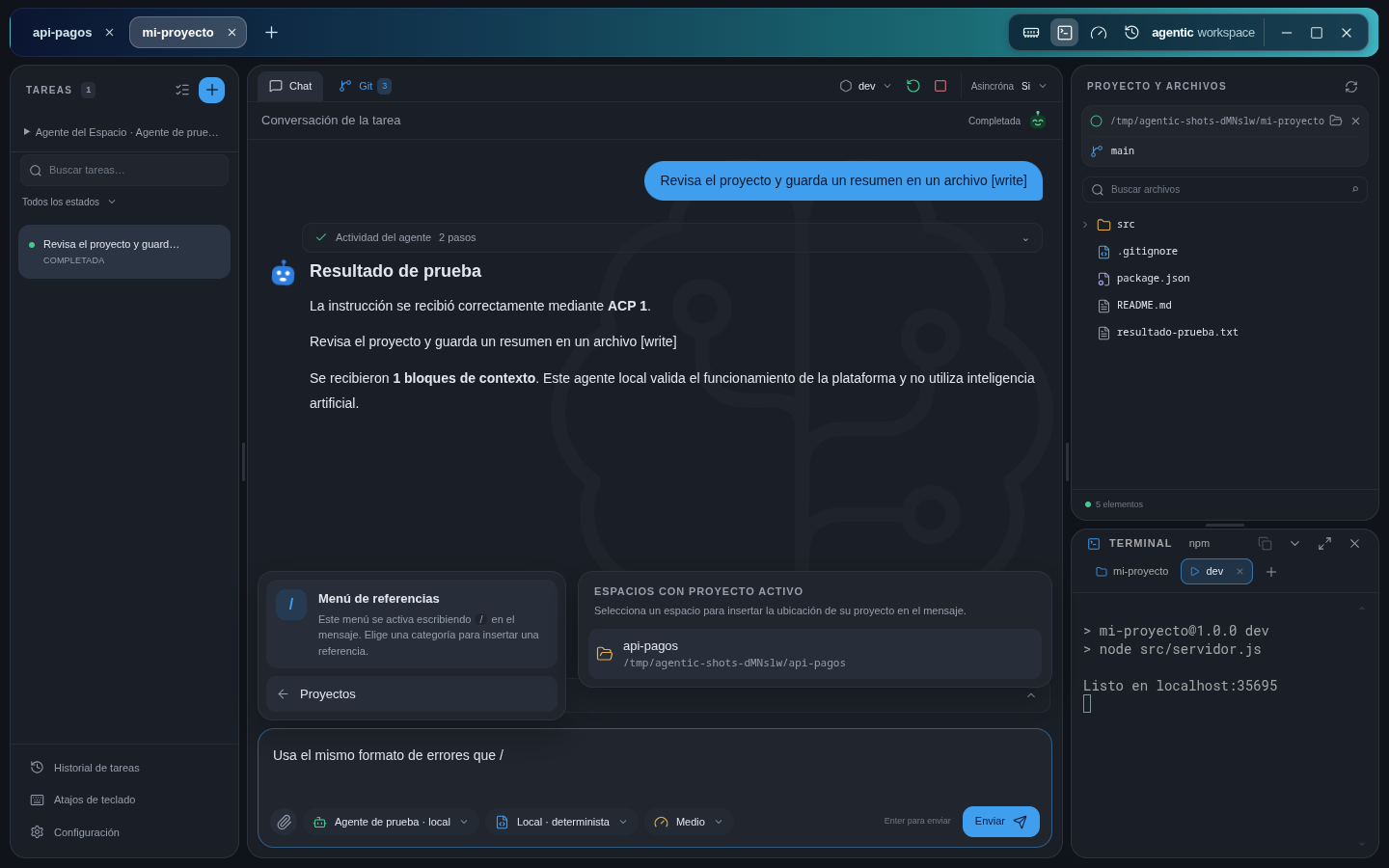
Give the agent what it needs without leaving the conversation.
The problem that goes away: preparing the context by hand and opening other apps to review the results.
New in version 1.2.38
GitHub, a database, a browser or a server of your own: until now, you had to configure every server in every agent. Here you add it once to your space and all your agents get access to it.
Until now
With Agentic Workspace
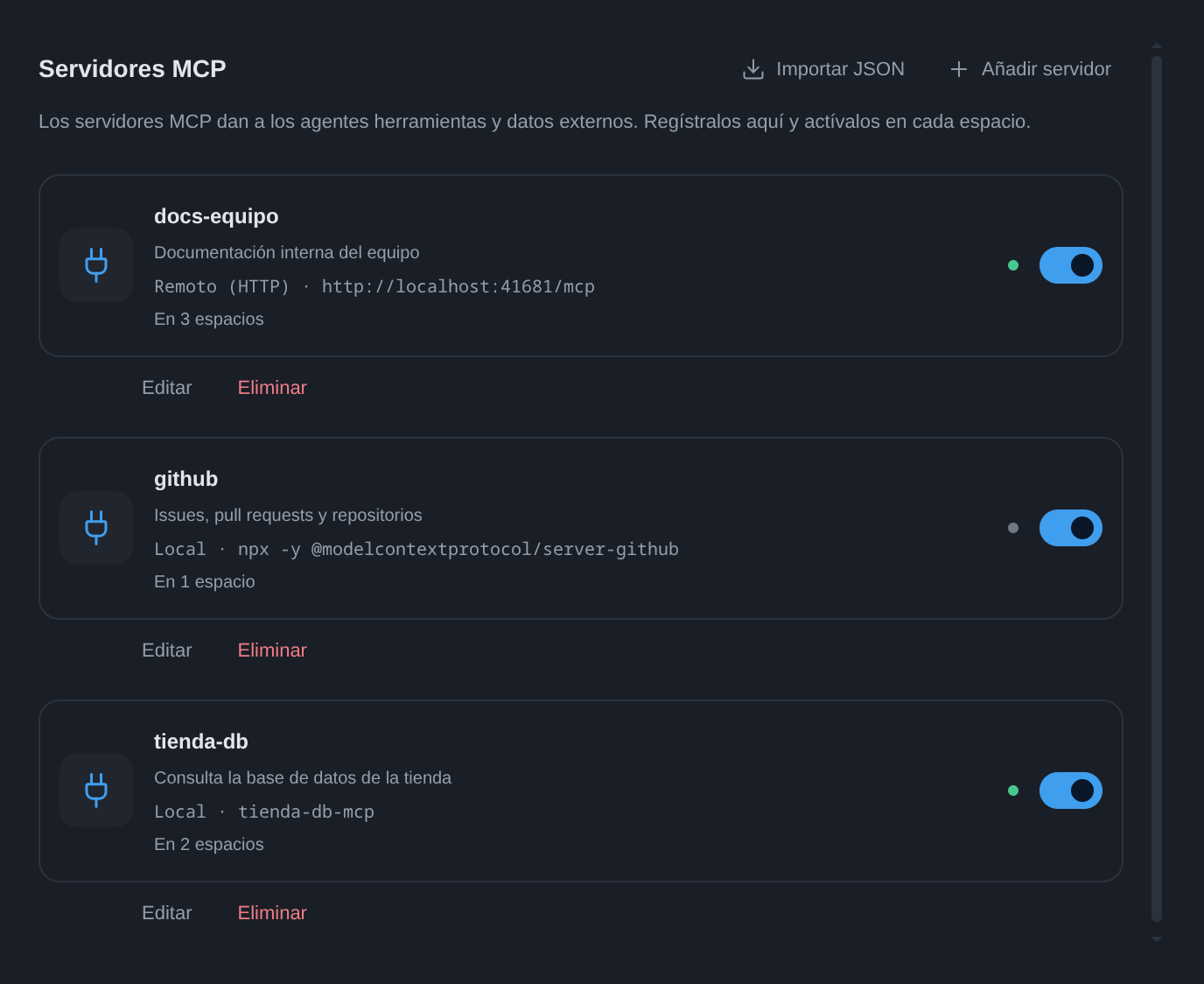
npx, uvx, docker) or remote ones over HTTP, or Import JSON with what you already have in Claude Desktop, Claude Code, Cursor or VS Code.No more configuring each server in each agent: add it to your space and any agent you pick for its tasks has access to it. Switch from Codex to Claude Code and its tools are still there.
MCP servers
 Your space
Agentic Workspace
Your agents
Codex and Claude Code receive them; other ACP agents get the local ones always and the remote ones if they support them. Every tool they use shows up in the conversation and, with Claude Code, asks for permission with the usual card.
Community
Agentic Workspace is part of the .agent community, the open community of the people building the agentic web: open standards, open work streams and a public map of its members.
Our space on the community map presents Agentic Workspace as a ready-made supervision layer for any agent that speaks ACP: permission prompts, change review and session history, with several agents running at once.
Visit our space in the community ↗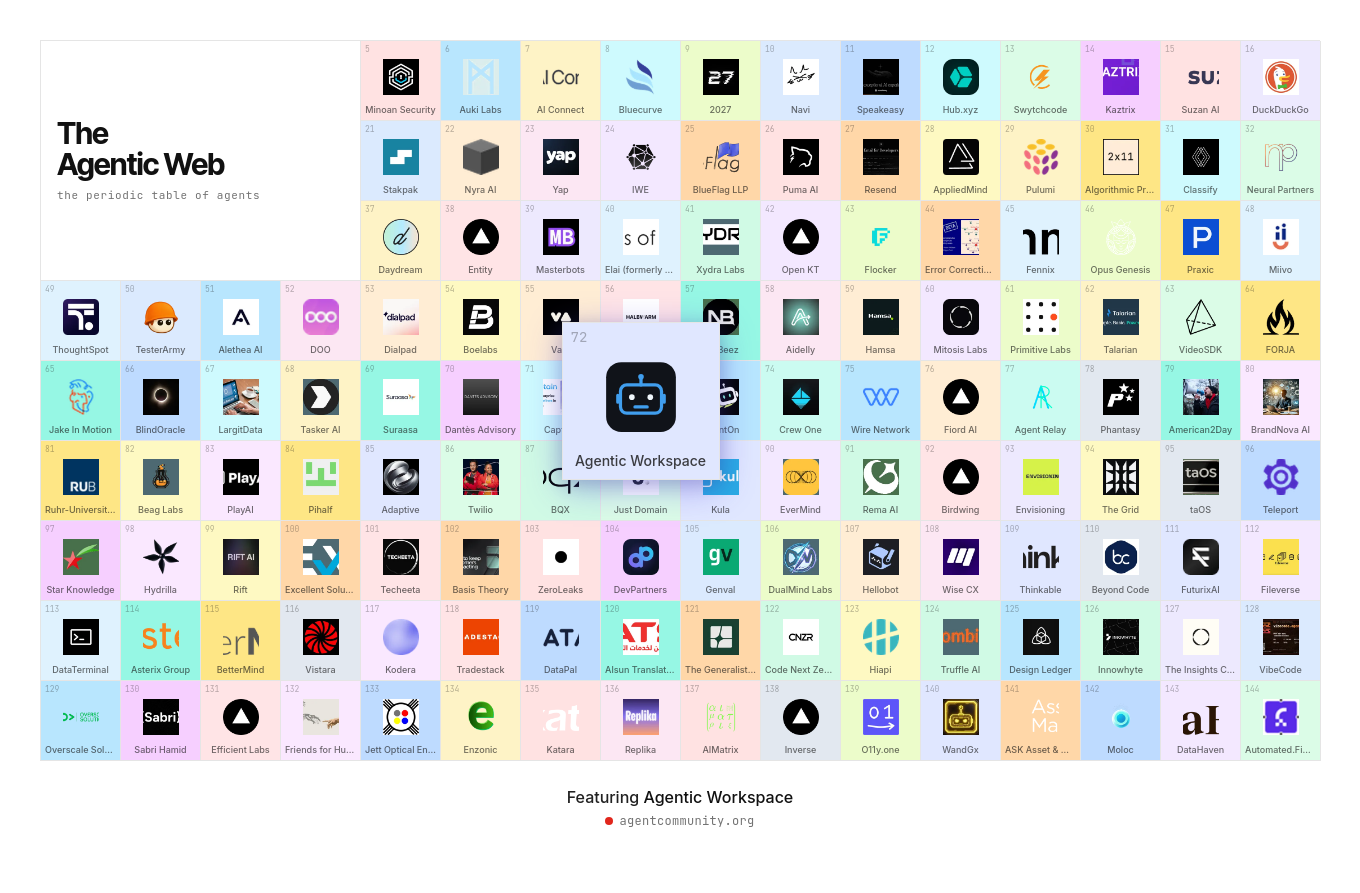
Download
Version 1.2.39 Free for personal and commercial use. Pick your system: everything you need is included.
Windows 10 and 11 · .exe installer · x64 · Version 1.2.39
It shows the license, lets you choose the folder and adds a shortcut to the Start menu.
Seeing “Windows protected your PC”? Signing the installer is in progress; in the meantime, click More info and then Run anyway.
To update, open the new version's installer over the existing installation.
macOS 12 or later · Apple Silicon and Intel · .dmg
The Mac version is on its way. You don't need to do anything: when it is ready, you will find it here.
In preparation
Debian 12+ · Ubuntu 22.04+ · x64
Run them in this order, one at a time and in the same terminal:
curl -fLO https://versions.agenticworkspace.app/apt/pool/main/a/agentic-workspace/agentic-workspace_1.2.39_amd64.debsudo apt install ./agentic-workspace_1.2.39_amd64.debThe package adds the repository: updates arrive with sudo apt update && sudo apt upgrade.
And derivatives · PKGBUILD · x64
Run them in this order, one at a time and in the same terminal:
rm -rf /tmp/awb && mkdir /tmp/awbtar -xzf agentic-workspace-bin-1.2.39.tar.gz -C /tmp/awb --strip-components=1cd /tmp/awbmakepkg -simakepkg downloads the app, checks its SHA-256 and installs it with pacman.
SHA-256 of each file:
9faa7d6c6366497451d5d12e7e5fb6b75e7bf04781fc526139070fddc163def4  agentic-workspace_1.2.39_amd64.deb
f448c70357ff9bfe4de4805d01f09f9e232344500043d9309c1eac6e88b5f6a3  agentic-workspace-1.2.39-linux-x64.tar.gz
cf43b572f9fb46cbe4ad532fa1e68ef654e1564c30d6b7db2c3b5923a3ec772d  agentic-workspace-bin-1.2.39.tar.gz
bfa18397816c9ef715b56b794af5bccfa75d0a1785c166027c2ed2bdea8cea00 agentic-workspace-1.2.39-win-x64.exeOn Windows, compute the checksum in PowerShell from the download folder and compare it:
Get-FileHash .\agentic-workspace-1.2.39-win-x64.exe -Algorithm SHA256The apt repository is signed with the key agentic-workspace.gpg, whose fingerprint is:
F633993803982F0A9147922E1A3EAC8B1EAAC5D8Frequently asked questions
Yes. You can use Agentic Workspace for free on any number of computers, for personal or commercial purposes, including inside companies. All current features are free. In the future we may add optional paid features; the version you already installed always keeps the free license you got it with.
No. Agentic Workspace doesn't ask you to sign up: you use the accounts you already have, your Claude Code or Codex sign-in, or your API key. You pay your AI provider the same as you would using it from the terminal.
Yes, since version 1.2.38. Register them in Settings → MCP servers, local with a command or remote over HTTP, or import them from the JSON of Claude Desktop, Claude Code, Cursor or VS Code. Then turn them on in your space: every agent in that space gets access to them, without configuring them in each one. More details in MCP servers.
Your history, backups and keys stay on your computer. There are no middleman servers: each agent talks directly to its own AI provider, just as it would from the terminal.
Windows 10 and 11, Debian 12 or later, Ubuntu 22.04 or later and Arch Linux, on x64 computers. The macOS version is coming soon.
The app is available in English and Spanish. By default it follows your system language, and you can change it at any time in Settings.
Questions or need help? Write to us at hello@agenticworkspace.app